
Content tab
The content tab of the editing page allows you to change the main body of text and content on the page.
The content tab consists of two parts: the editing toolbar, and the editing window. The toolbar is made up of two rows of buttons, and looks similar to programs like Microsoft Word. The editing window contains the content of the page you are editing, and is where you can type and change the text just like you would on Word.
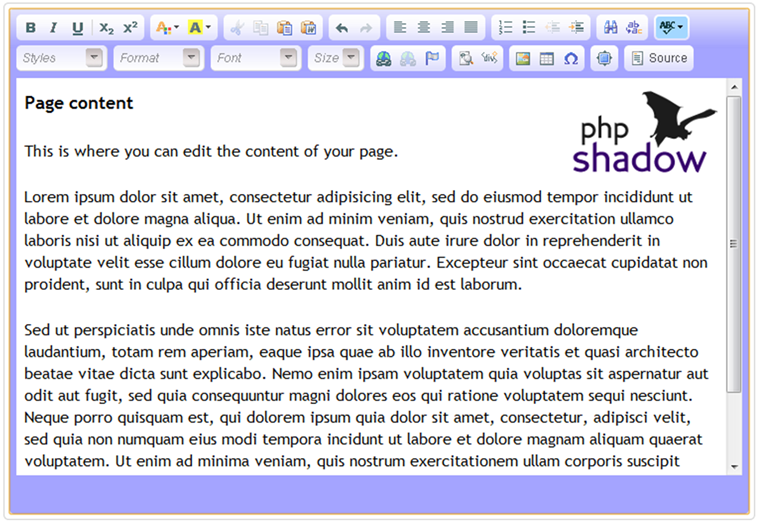
Most used features
Using page headings
To add a page heading, start a new line by using the <Enter> key on the keyboard.
Then select the heading you want from the drop-down 'Format' menu (second left on the lower toolbar). The default style is 'Normal' - this is standard paragraph text. You can scroll down this drop down list and choose from 'Heading 1' (biggest) to 'Heading 6' (smallest). Generally it looks best if you use only Headings 1-3 on a page.
Click on the heading you want to use - the text will now be styled as the heading you selected.
When you next type <Enter> to create a new line, the style automatically changes back to 'Normal' so you can carry on typing a paragraph beneath the heading.
To change a heading style on an existing heading, place the cursor anywhere in the heading text you wish to change, and use the 'Format' drop-down menu again in a similar way.
Adding a hyperlink to another web page
You can easily add links to other site pages, as well as external sites. Read instructions on this support page.
Adding an images and files to the page
You can upload images and files at the bottom of the content tab. Read instructions on this support page.
Toolbar buttons
Listed below are the most commonly used toolbar buttons and what they do.
| Icon | Description |
|---|---|
 |
Sets the selected text to bold. You can also use the keyboard shortcut Ctrl-B (Windows, Linux) or ⌘B (Mac). |
|
|
Sets the selected text to italic. You can also use the keyboard shortcut Ctrl-I (Windows, Linux) or ⌘I (Mac). |
|
|
Sets the selected text to underlined. You can also use the keyboard shortcut Ctrl-U (Windows, Linux) or ⌘U (Mac). |
|
|
Changes the font colour - a menu is shown and you can click on a colour to choose it. |
|
|
Undo - click to undo the last changes you made. You can also use keyboard shortcut Ctrl-Z (Windows, Linux). |
|
|
Redo - click to redo a change you've just 'undone'. You can also use keyboard shortcut Ctrl-Y (Windows, Linux). |
|
|
Add a hyperlink to another web page. Read instructions on this support page. |